When you first run ywSynch you will need to open a yWriter5 project by selecting the File/Open menu item. Make sure you have backed up the yWriter project first!
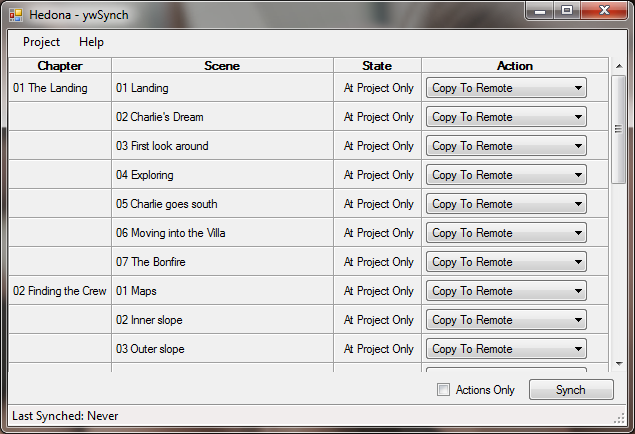
Once the project has been opened the main screen will be filled like the example below.
The chapter and scene data has been read from the yWriter project file, and the names displayed are those that will be given to the chapter folders and the scene documents when they are transferred to the remote location.
Initially, the State column reads "At Project Only" for all scenes, because none of them are on the remote disk. The default action in each case is to copy the file to the remote location.
To carry out these actions, press the Synch button. This will create a folder for the project below the Root folder that you selected or created in the Options screen, and another folder for each chapter below that containing the document files with the scene text in them.
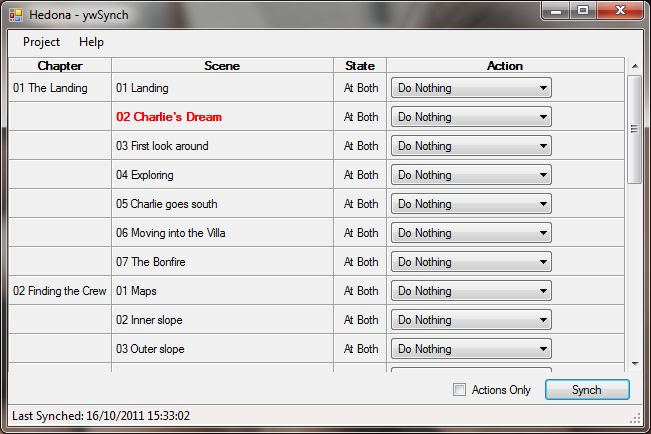
When the Synch is complete the screen will look like this:
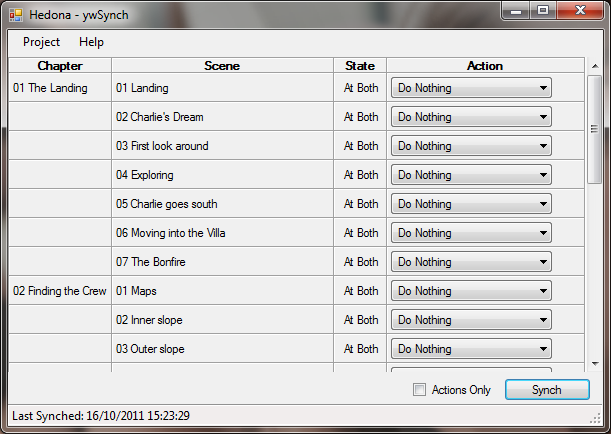
The State for each file is now At Both, and the default action for each one is to do nothing. In other words, if you were to synch again, no files would be transferred.
Note that there is now a Last Synched date and time at the bottom left, where before it said Never. The time of the last synch is saved in a .yws file in the yWriter5 project folder. After you have edited scenes and run ywSynch again, the program will use this Last Synched time to determine which files have been changed. Assuming I have edited scenes both on the PC and on the device, the next time I run ywSynch I might see something like this:
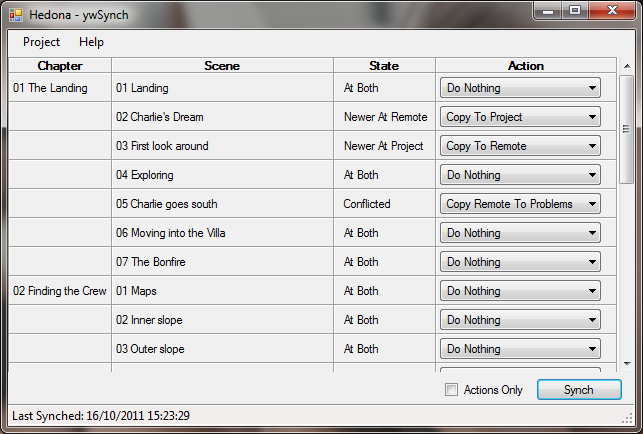
"Charlie's Dream" has been edited on the device, so its default action is to copy the document back to the yWriter project on the PC, converting it to RTF and overwriting the old RTF file (which in this case happened to be RTF_00003 .RTF). "First look around" has been edited on the PC, so its default action is to copy the new version to the device.
I've done something rather silly with "Charlie goes south". I've edited it at both locations without doing a synch in between. Its state is now listed as Conflicted, and the default action is to copy the remote version to a Problems folder within the yWriter project folder. If I leave it like this, it will be converted to rtf and given the same name that the scene file had on the device. I could then use my Word Processor to highlight the differences between the two versions and merge them together.
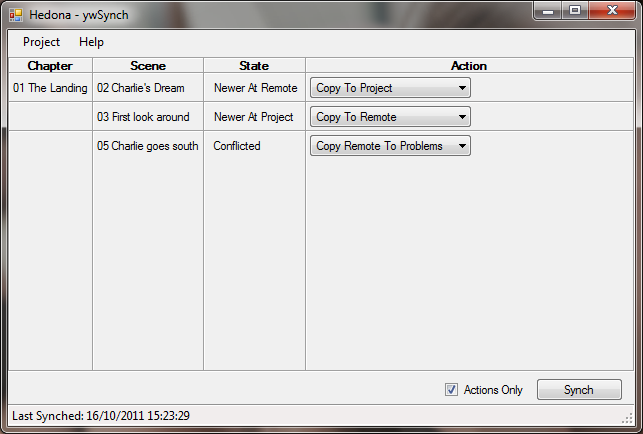
It can get a bit difficult to spot changes as you get further along the book. Ticking the Actions Only box will make it display only the scenes that have an action outstanding, In this case you would see only:
After synching again the screen looks like this:
Simon has added a facility to yWriter to force an update of the word counts (Tools/Force wordcount). This means it is no longer necessary to open and save the updated documents in yWriter to do this, and thus no need to synch them back to the remote location.
"Charlie goes south" is displayed as being the same at both ends. The reason for this is that both files are now older than the last synch time, so as far as ywSynch is concerned there is no need for them to be synched. (This behaviour may be improved in a later version).
You can modify the action that will be made for each file on the next synch by clicking on it, and selecting a different action.