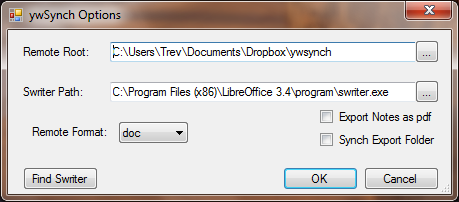
Remote Root:
This is the only option that definitely has to be set the first time ywSynch is run. You should enter the path of a folder on your device, on the card that you will use in your device, or the folder on your PC that you use to synch with the device. In the example shown a dropbox is being used, and all the projects synched onto the card will be in folders below the ywsynch folder.
You can select or create a folder by pressing the browse (...) button.
If you are using a dropbox to transfer the files, there is no need to plug your device into the PC. Otherwise...
If you plug in your device, and it appears in Explorer without a drive letter, as in the example below, then it is running in MTP mode (a mode designed for media players, rather than word processors). ywSynch is not able to operate on a device in this mode.
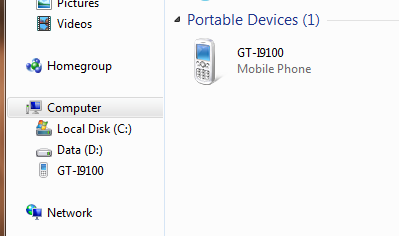
In some cases, it is possible to tell the device to operate in USB storage mode, in which case the PC will allocate a drive letter. For example, the GT-I9100 device above, a Samsung Galaxy S2, can be put into this mode by running an app found in the Network settings, under USB Utilities. In some other cases, such as the Asus Transformer, it does not appear to be possible to do this, and so some other method, such as physically moving a micro-SD card between the PC and the device, would have to be used.
Swriter Path:
This is the path to the swriter.exe application. Initially, this will be blank. To set it, you can either browse to the swriter location (using the ... button) or press the Find Swriter button. Note that you do not need to set this path, or have LibreOffice installed at all, if you are using rtf as the remote format, and not exporting notes as pdf.
Remote Format:
This allows you to select the format that will be used for the files when transferred to the device. Depending the word processor you use you may want to use doc or docx format. Make sure you use a format that not only can be opened by the device's word processor, but can also be saved by it. For example, some Android apps can open doc, docx and rtf files, but will always save the result as docx. In that case, you should set this to docx. If the editor on your device can edit and save rtf files then select rtf, because that will be much faster and doesn't require the use of LibreOffice).
Export Notes as pdf: When ywSynch synchs your project it will also write various files to the remote project containing the notes, such as scene synposes, character lists etc. By default it will produce html files. If you would rather have it produce pdfs of these files then tick this box (producing pdfs requires LibreOffice and is much slower than producing html files).
Synch Export Folder:
If you like to use yWriter's export and import facilities to edit or read your project you should tick this box. ywSynch will still carry out its usual synch operations but will, in addition, also synch the contents of yWriter's Export folder with the remote project. This synch operation is quite simple. Any files it finds at either end that aren't at the other end will be copied across. If it finds files at both ends that have different Last Modified DateTimes it copies the newer one to the other end, overwriting the older version. Any that have the same DateTime are left unchanged. As it copies it carries out the conversions specified by the Remote Format field, e.g. changing a remote file with a doc extension to rtf as it copies it to the yWriter project.
Find Swriter:
This button will search through Program Files (and Program Files (x86) on 64 bit Windows) for the swriter.exe file, and load it automatically into the Swriter Path box. If you have more than one version of LibreOffice (or OpenOffice) installed it will arbitrarily find one of them, and you may need to use the Browse (...) button to find the version you want to use.